Introduction#
In Creatio, an application is the unit your customizations ship in; each one contains one or more content packages, generated automatically when you create a new app. If you plan to move your app across environments, from development to testing or production, you’ll need to set up your development instance first.
This guide covers the setup steps that make those transfers work: prefixes, the current package, and how the page editor decides where to save your changes.
Set a Prefix for Your Application#
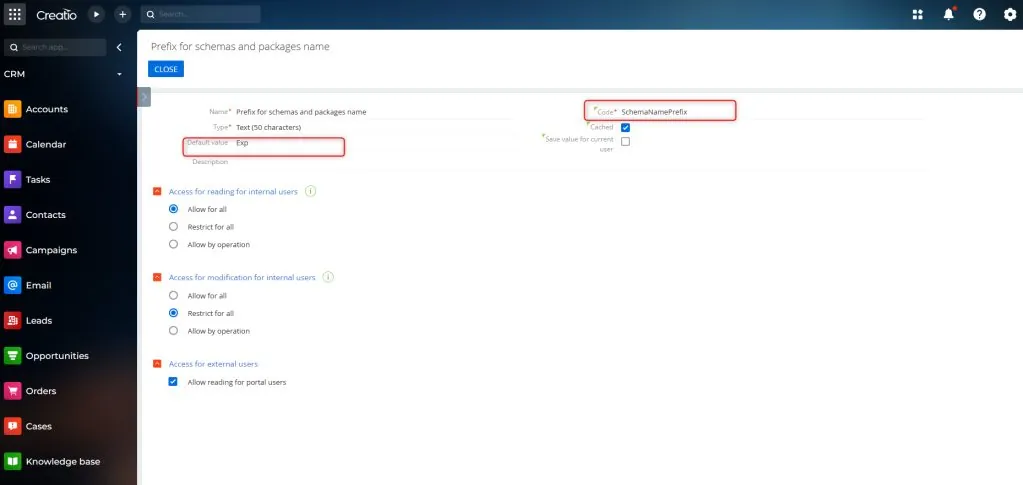
Before building your application, configure a prefix that marks every custom component as yours. Navigate to System Settings and search for SchemaNamePrefix. This setting defines the prefix used for schema names and package codes, so your app’s elements stay identifiable in any environment they move to.
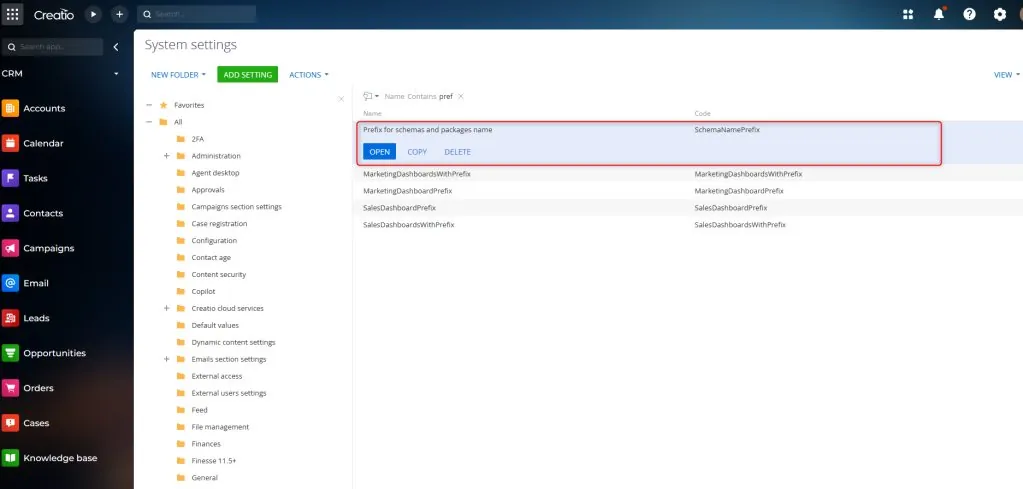
Choose a prefix for your application and enter it in the Default Value column. Once done, click Save.
Create an Application #
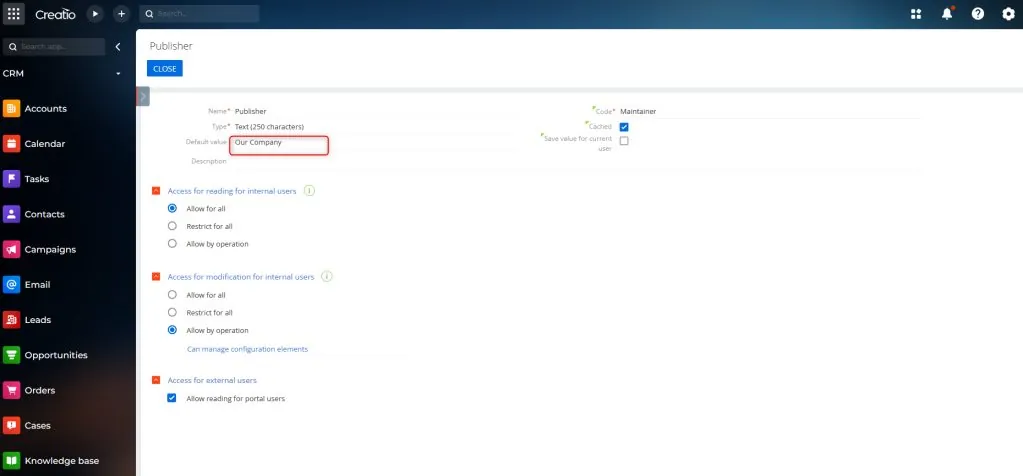
Before creating your app, set your maintainer name in the Publisher (Maintainer code) system setting. Avoid using “Customer” as the maintainer, as this can make the app editable in development environments, potentially causing unintended modifications.
How to Set the Maintainer System Setting to “Our Company”#
Navigate to System Settings
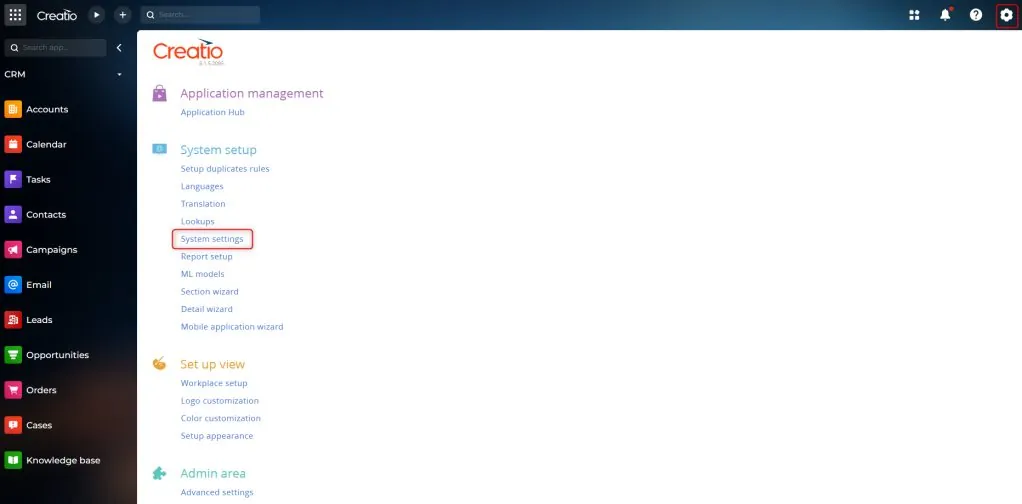
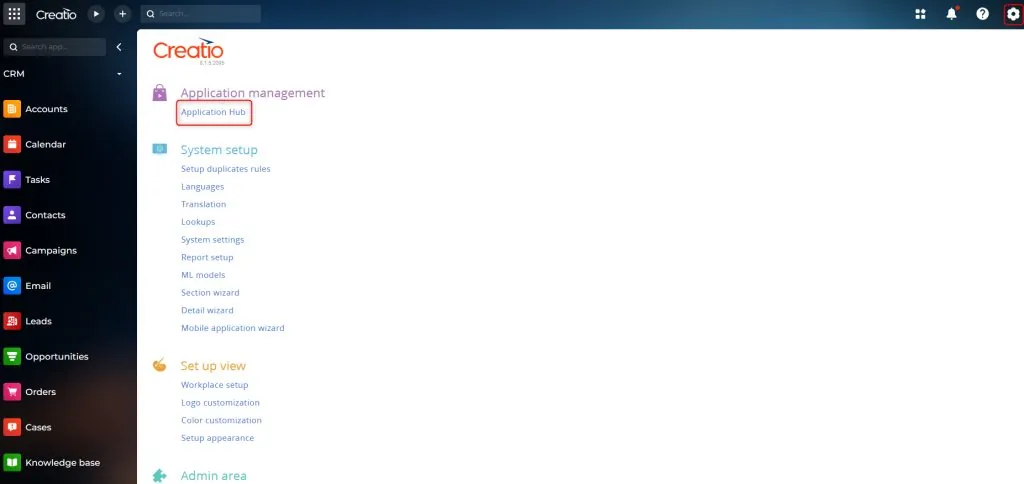
In the main menu, click System Designer (gear icon).
Under the System Setup section, select System Settings.
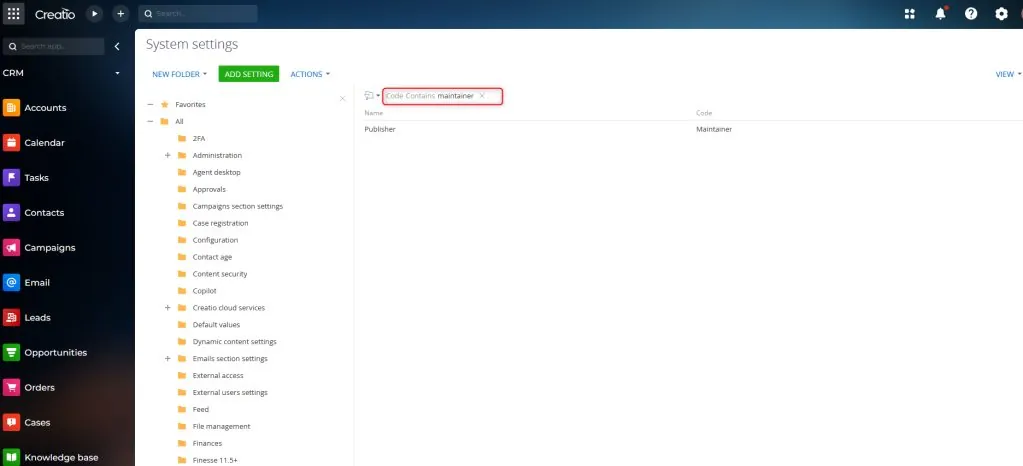
Search for the “Maintainer” Setting
- Look for the setting labeled Maintainer with the code “Maintainer”.
Set the Value to “Our Company”
Open the Maintainer setting.
In the Default Value field, enter Our Company.
Save the Changes
Create your application#
In the top-right corner, click Application Hub.
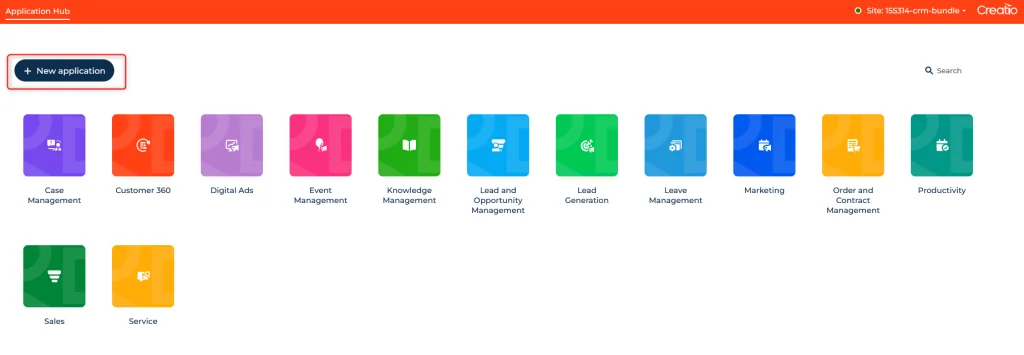
Select [New Application] to open the creation dialog box.
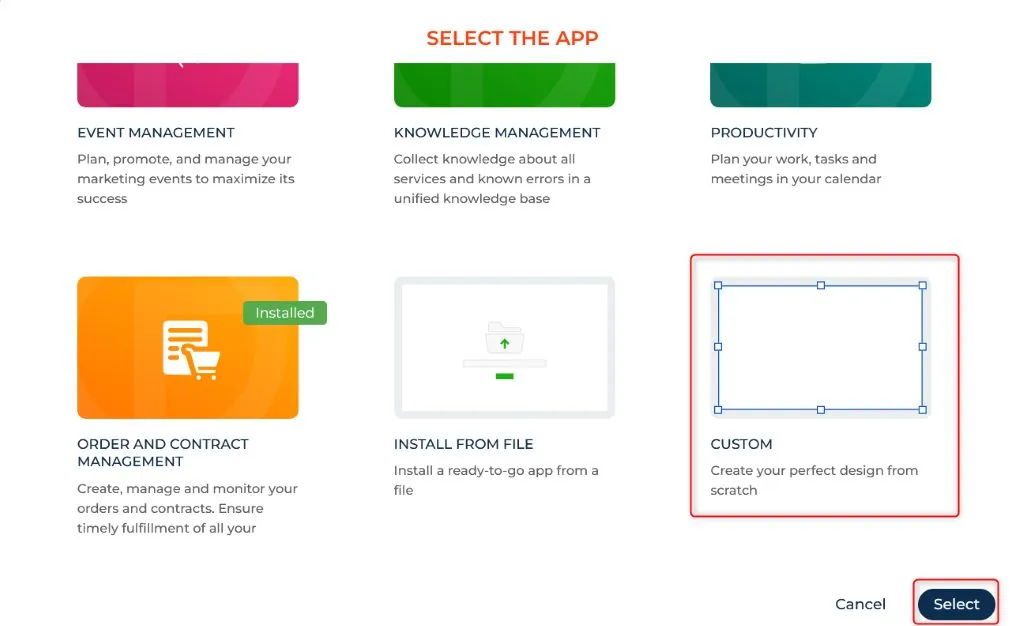
Choose a Template:
Select a template based on your business goals. For example, the “Records and Business Processes” template automatically adds a list and record page to your app.
Click [Select] to confirm your template choice.
For this guide, we’ll choose the “Custom” template, which starts from an empty app.
Customize the App:
Select an app icon using the arrows or your scroll wheel.
Choose an icon color.
Enter a unique name for your app in the [Application Name] field (e.g., Vacation Requests).
Click [Create]. Note: The app name is required and must be unique.
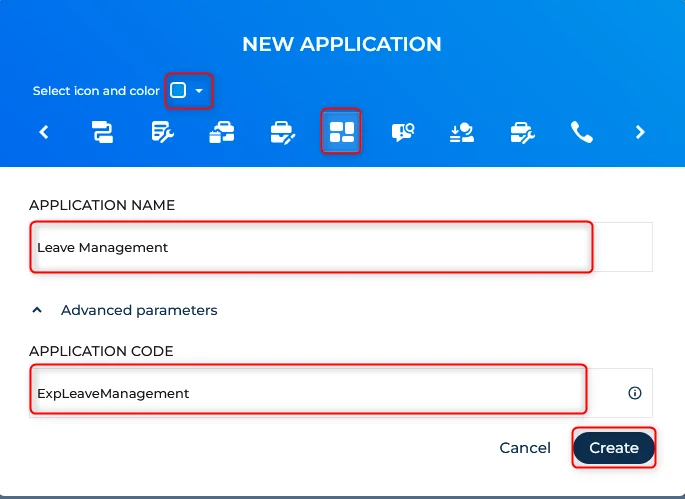
View and Test Your App:
- To see the results or test your app, click [Run App].
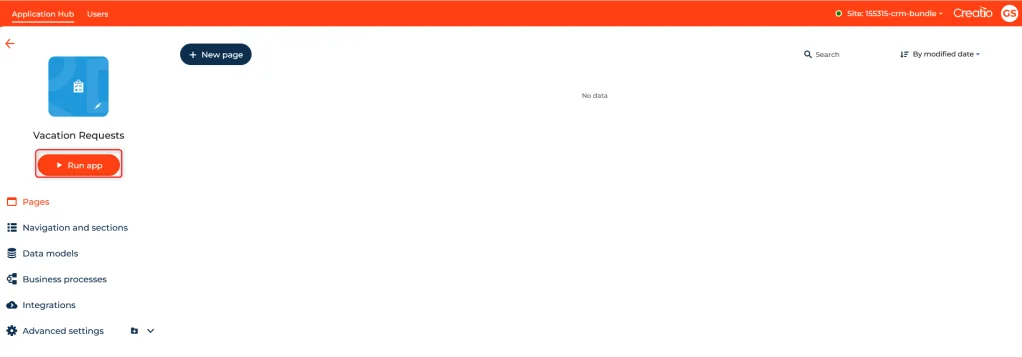
Important Notes
Creatio stores Freedom UI app data within the current app package.
The current app package is where all elements created or modified through the Application Hub are saved. Creatio assigns the current app package the first time you open or edit any element of the app. Each app is linked to one current app package.
How Creatio Assigns the Current App Package:#
If the app contains one unlocked package, Creatio marks it as the current app package.
If the app contains multiple unlocked packages, Creatio arbitrarily selects one as the current app package.
If the app has no unlocked packages (e.g., base product apps or Marketplace apps), Creatio automatically creates a new package and marks it as the current app package.
In our case, Creatio will automatically create a new package for the app, which will serve as the current app package.
How to View or Change the Current App Package:#
Open the Lookups Section:
- Click the gear icon in the top-right corner → System Setup → Lookups.
Create a New Lookup:
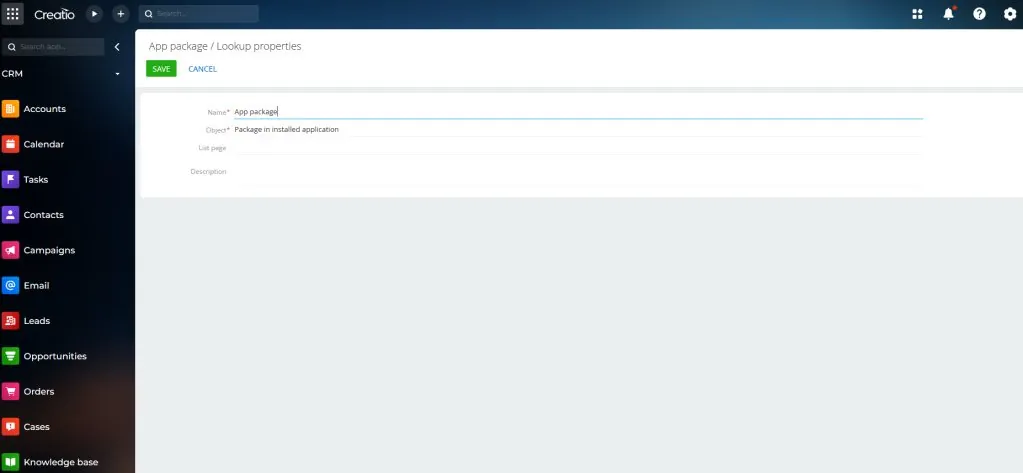
Click [New Lookup] on the toolbar.
Fill out the lookup properties:
Name: Enter a name (e.g., “App Package”).
Object: Select Package in installed application.
Save your changes.
Set the Current App Package:
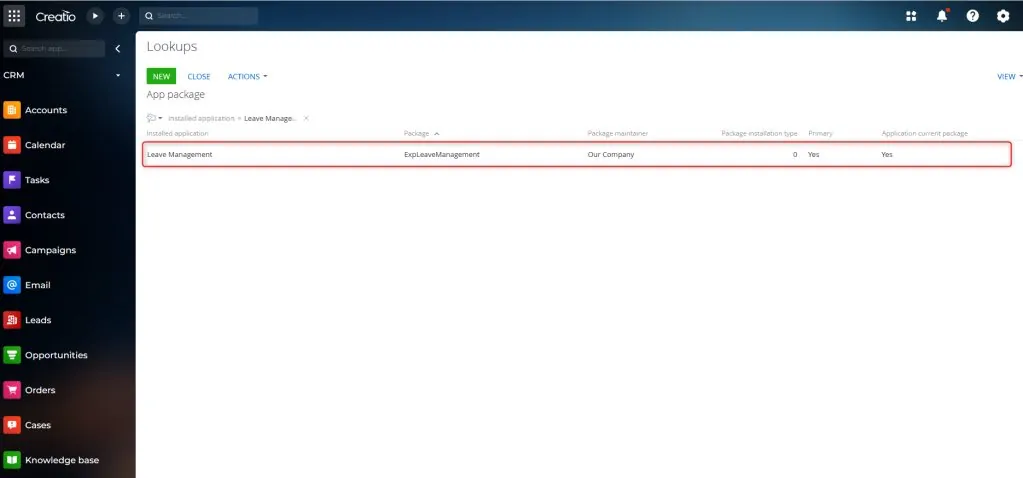
Open the App Package lookup.
Add a filter: Installed application = [Name of your app] (e.g., Vacation Requests).
This assigns the package that stores your app’s customizations.
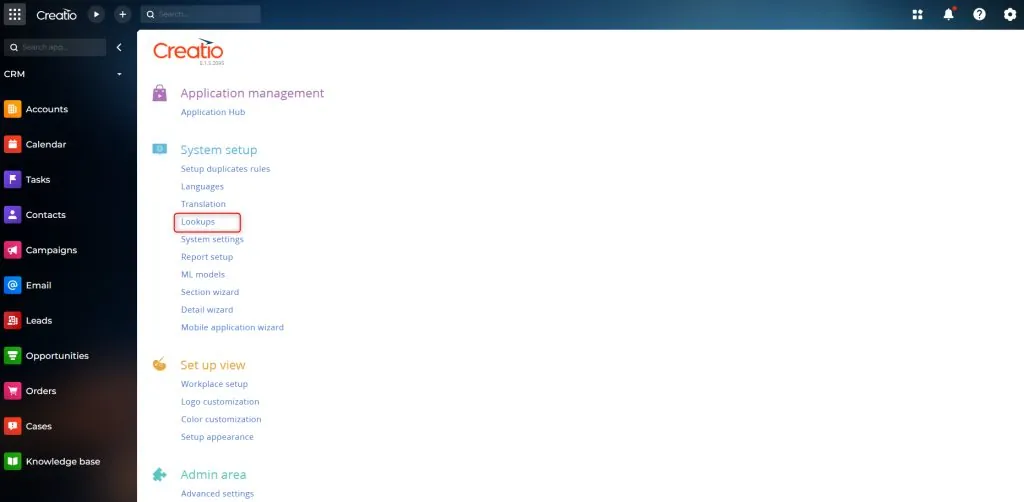
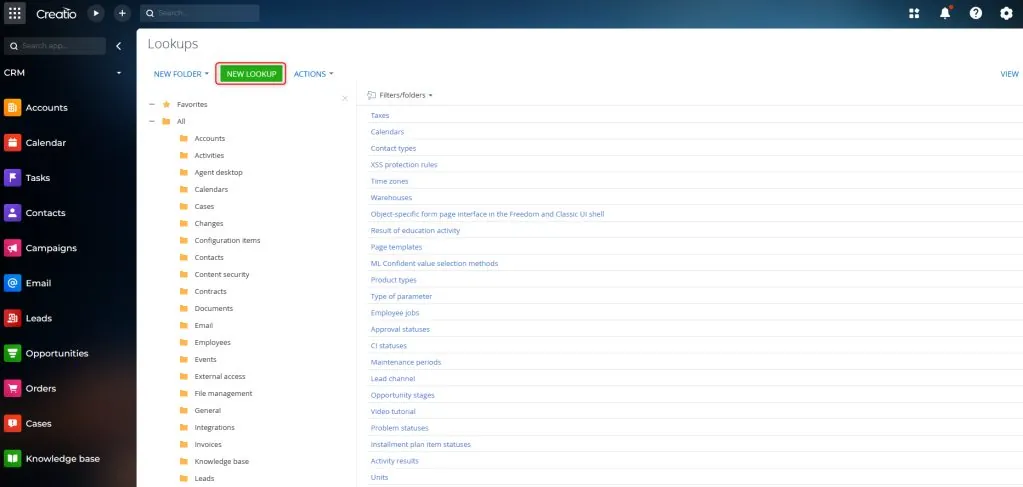
When you return to customize your app later, Creatio behaves differently depending on the tool you use:
Changes made through the Application Hub are saved to the app package.
Changes made through the UI or Creatio IDE are saved to a separate package.
To avoid errors when saving or transferring changes, set the app package in the “Current package” system setting (code: CurrentPackageId) before you begin working. All changes then land in the app package, whichever tool you use.
Set Up the Current Package#
To change the current package:
Click Save to apply the changes.
Open System Settings:
Click the gear icon in the top-right corner → System Setup → System Settings.
Find the “Current Package” Setting:
Use the search bar to filter the list by code, typing “Current package”.
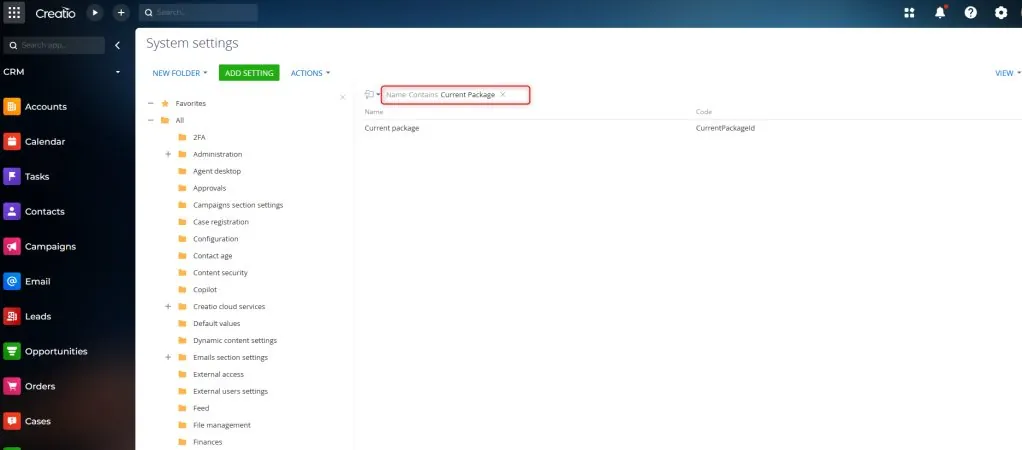
Select the “Current package” system setting (code: CurrentPackageId).
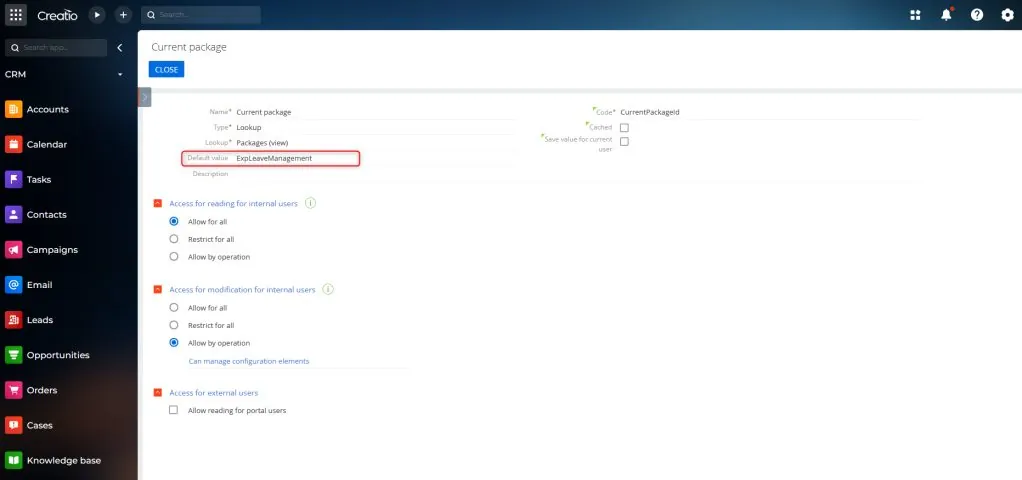
Select Your App’s Package:
Choose the package created for your app (e.g., ExpLeaveManagement).
Managing Application/Package Saving Behavior#
Creatio offers a feature that controls how the Freedom UI page editor determines the package to save a page. If you disable this feature, the editor will revert to its previous behavior, relying solely on the [Current Package] system setting to determine where to save pages. This may help ensure that pages are saved consistently in the intended package.
Disable the Feature: Feature-UseSchemaDesignPackageUIdByHierarchy
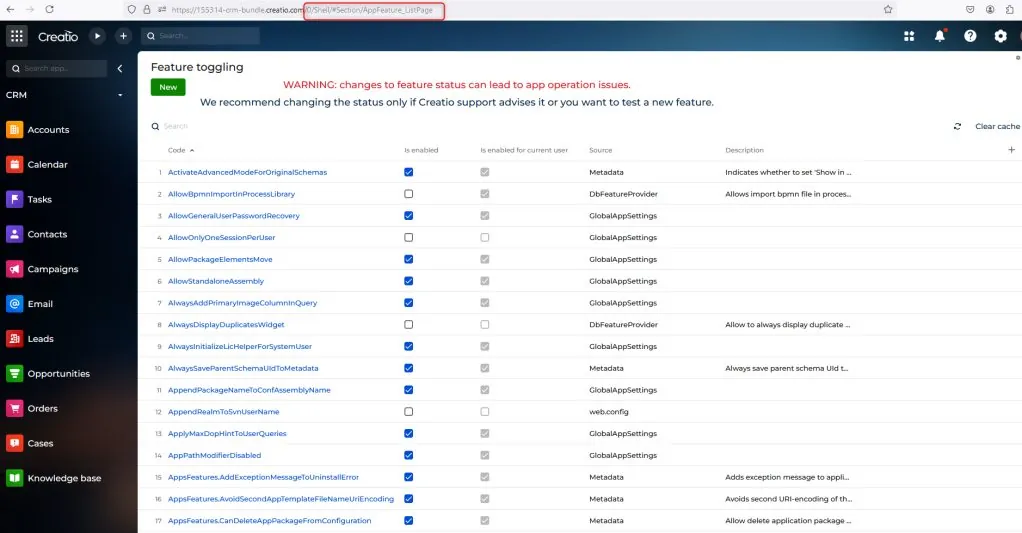
To disable this feature, go to the feature toggle page using the following link:
[Creatio URL]/0/Shell/#Section/AppFeature_ListPage
You can also add the “Feature Toggling” section to your workspace for quick access from the navigation bar. In recent versions, you can access it directly via [Creatio URL]/0/flags.
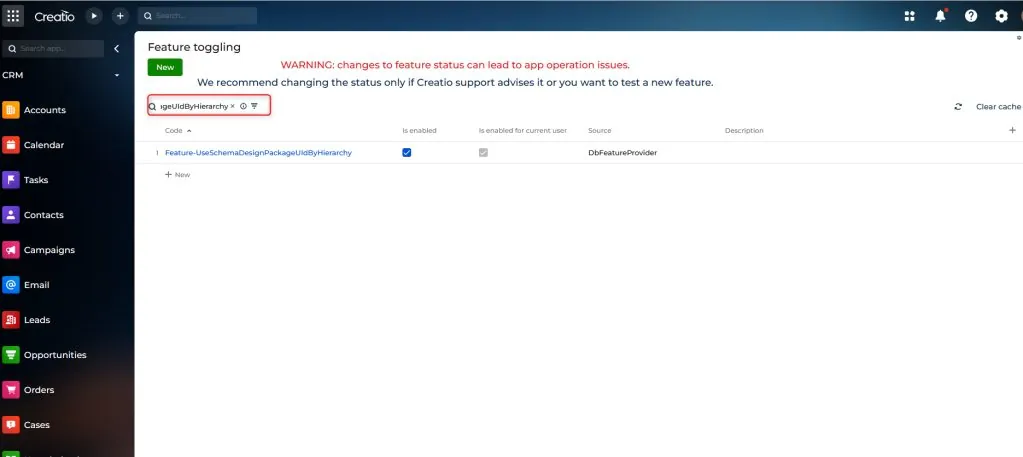
Once on the feature toggle page, search for:
Feature-UseSchemaDesignPackageUIdByHierarchy
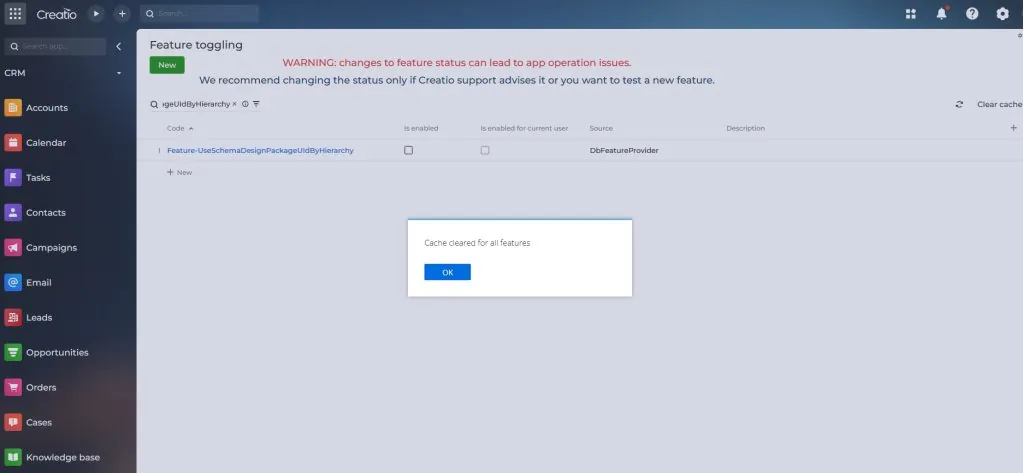
To disable it, toggle off “Is enabled” and “Is enabled for current user.” Then, click “Save All” and “Clear Cache.”
After disabling, the Freedom UI page editor will use the Current Package system setting to save changes, with the following exceptions:
If the page is opened from a specific application in the Application Hub, it will save back to that application.
If opened from a specific package in the configuration, it will save back to that package.
Conclusion#
The two settings that matter most are the current package and how the Freedom UI page editor saves your work. Get those right before you build anything, and your app will transfer cleanly between environments. Get them wrong and you will be untangling schemas from the wrong packages later, a cleanup that takes far longer than the setup would have.
FAQ: First Creatio Application Setup#
Why do I need a schema name prefix?#
It prevents naming collisions across packages and environments and groups custom artifacts logically.
What happens if I leave Maintainer as “Customer”?#
The application may be editable in unintended environments; setting a proper maintainer protects packaged functionality.
Can I split one app into multiple packages later?#
Yes. Create additional unlocked packages, move schemas, update dependencies, and recompile.
How do I version my application?#
Use semantic versioning in the package descriptor and export packages via Clio for distribution.
Difference between Application Hub and classic configuration?#
Application Hub offers a higher-level, Freedom UI focused abstraction while classic tools expose deeper low-code / code-level artifacts.
Setting up Creatio for a real client?
Thirty minutes with Mohamed, who founded the company and still runs these calls himself. He will sketch your situation and tell you the cleanest path, including the times when that path is not us.