Typeform supports native webhooks, but the most flexible path to Creatio runs through Make.com, which lets you transform Typeform’s UUID-based mappable_answers payloads, handle multi-select fields with the Iterator module, and concatenate split fields (date/time, name parts) before posting to Creatio’s Lead webhook. This guide walks the Make.com path end-to-end; if you want a quick-and-dirty native webhook (Typeform → URL with raw payload), it’s possible but you give up transformation control.
Using a different form tool? Fillout → Creatio (supports a direct webhook, no Make.com needed) · Jotform → Creatio (Make.com required, API-key auth)
Steps at a glance#
- Create your Typeform
- Copy the Creatio Lead Webhook URL
- In Make: add Typeform “Watch Responses”
- Add HTTP module: POST to Creatio webhook
- Map fields
- Run a test and activate the scenario
Who this guide is for (Creatio no-code builders)#
- Creatio citizen developers and no-code creators
- Teams who want to auto-create Leads in Creatio from Typeform without custom code
- Admins who prefer Make.com scenarios over custom REST/OData scripts
What you’ll achieve#
- Auto-create Leads (or Contacts/Cases) in Creatio from any Typeform
- Map Typeform fields to Creatio columns without code
- Keep the flow no-code end to end: Creatio’s webhook on one side, a Make scenario on the other
Video Tutorial#
Watch this step-by-step video guide to see the entire integration process in action:
1. Set up the Typeform account#
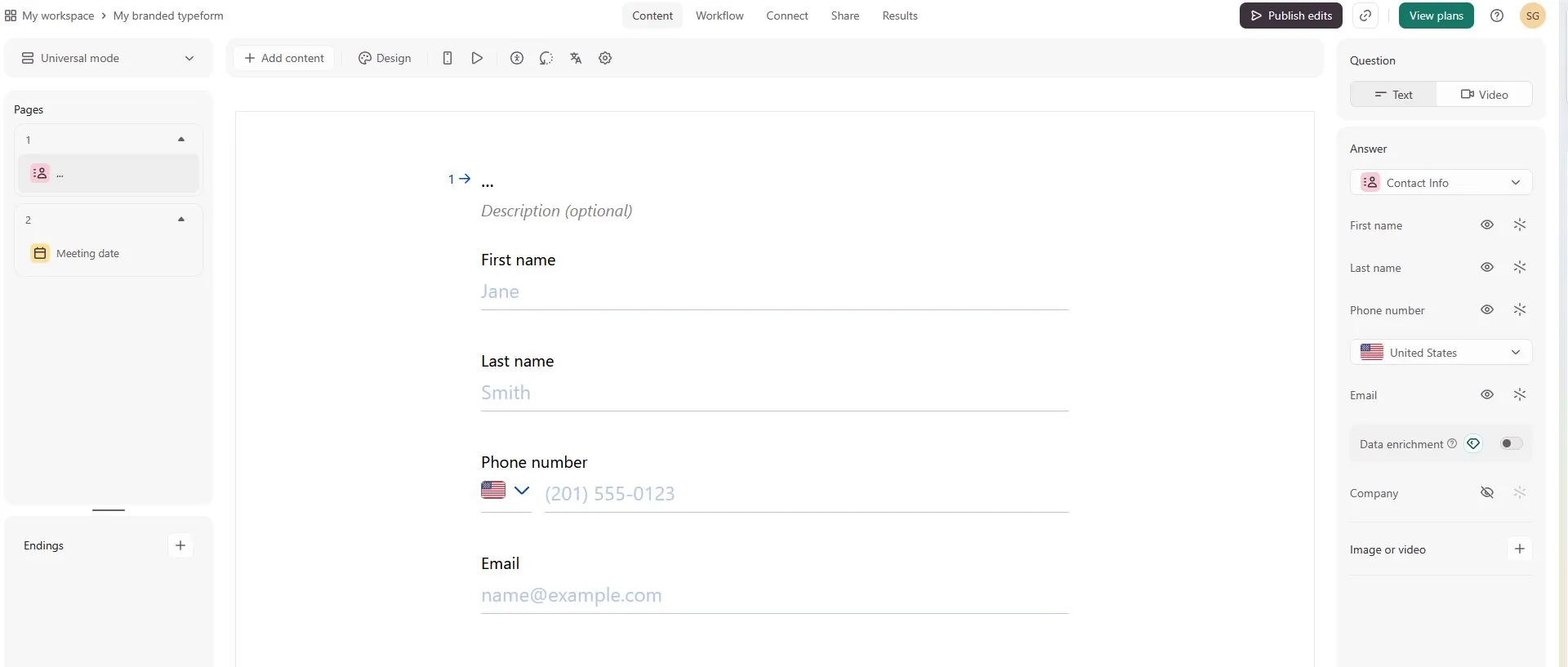
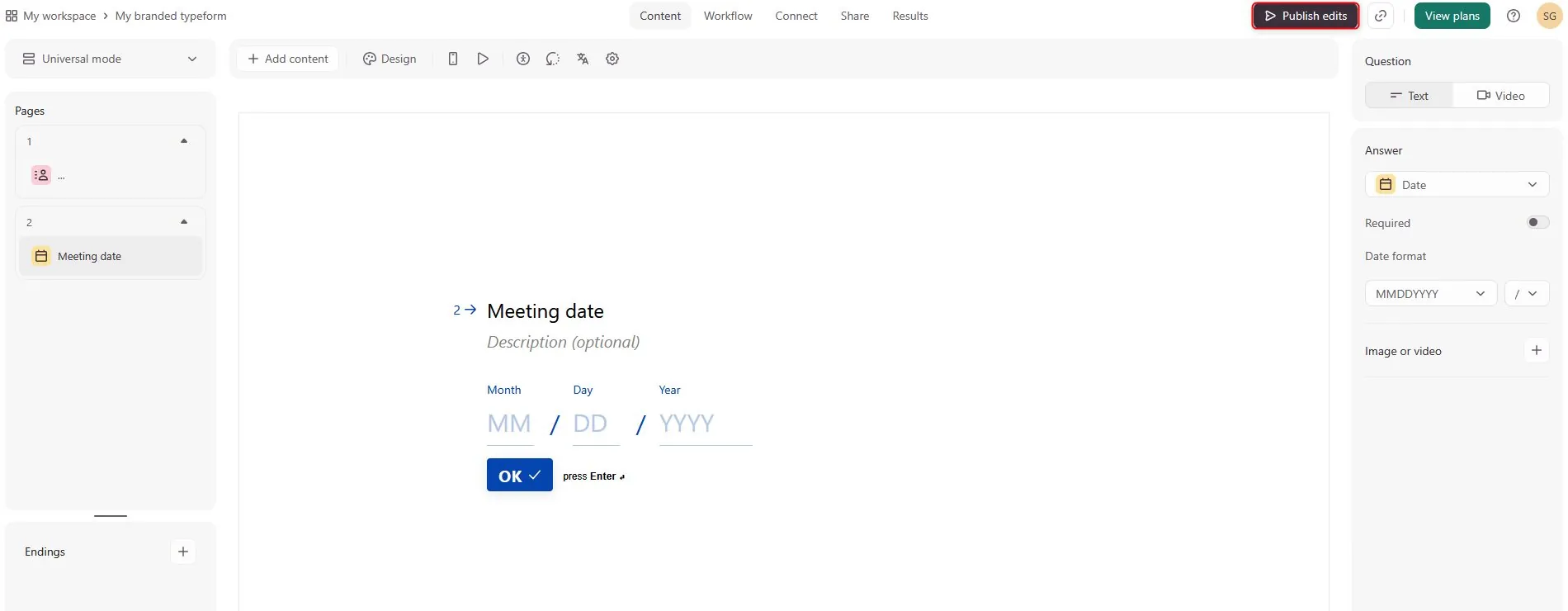
Create a form and make sure it’s published by clicking the Share/Publish edits button.
a. Create an account at Typeform.
b. Build your form with all the required fields (Lead Name, Email, Phone, etc.).
2. Get the webhook URL from Creatio#
To connect Creatio with Make, you need to obtain the Webhook URL that will receive Typeform responses.
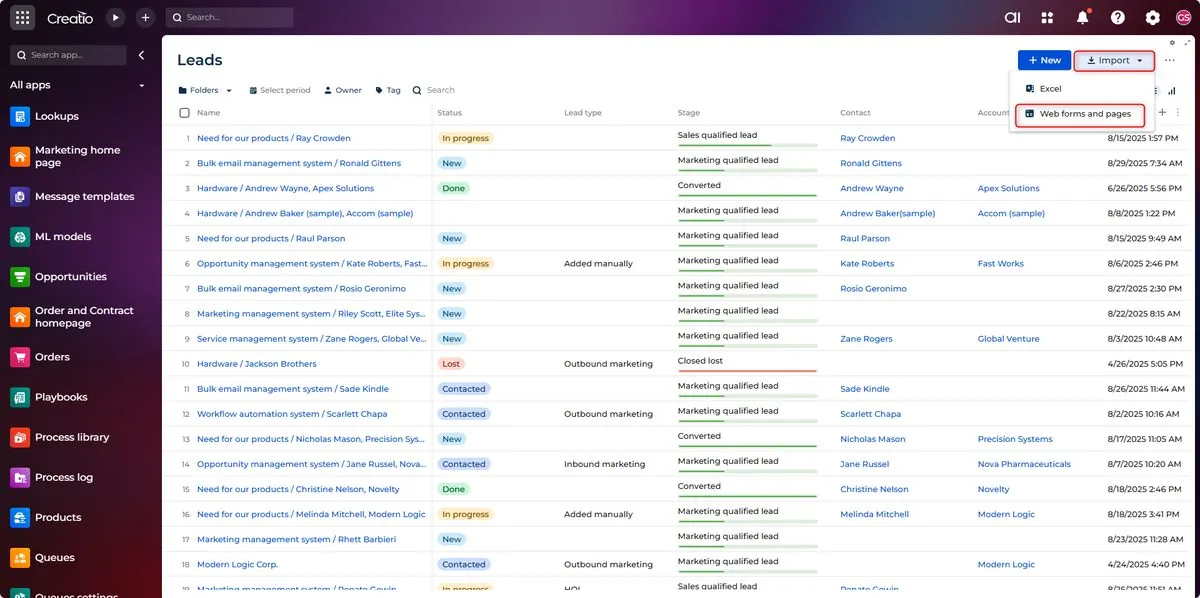
- Go to the Lead section in Creatio.
- In the top menu, click Import.
- From the dropdown, select Web forms and pages.
- A list of web form integration options will open.
- Click Get your webhook URL.
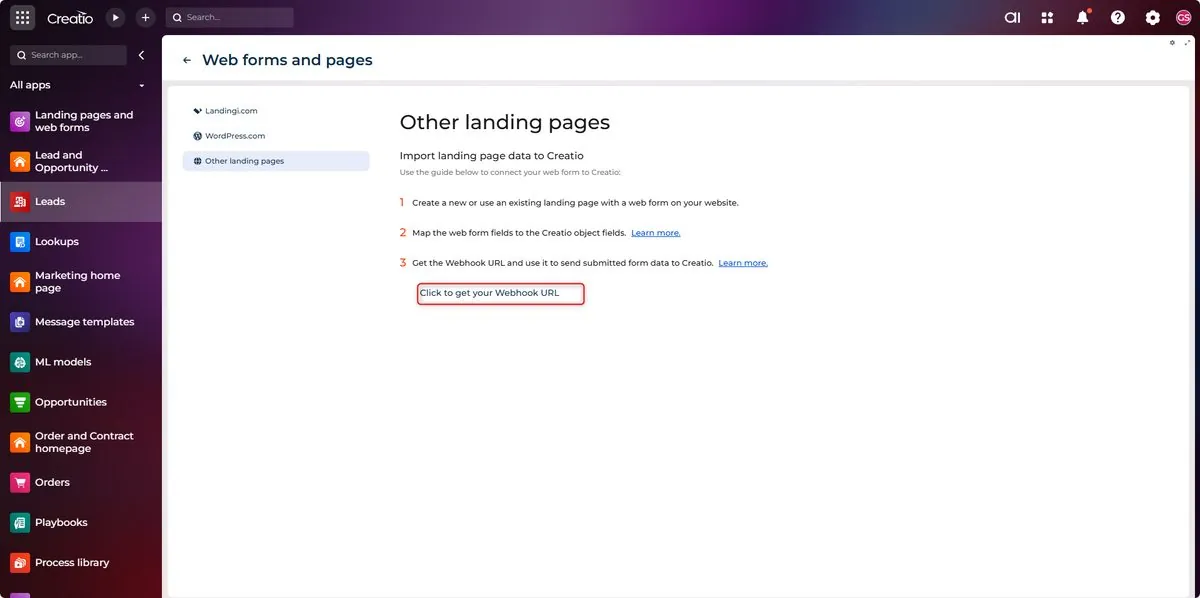
- Copy the generated Webhook URL; you’ll use this in your Make scenario.
3. Set up the Make account#
Create Your Automation Scenario#
a. Create a Make account at Make.com.
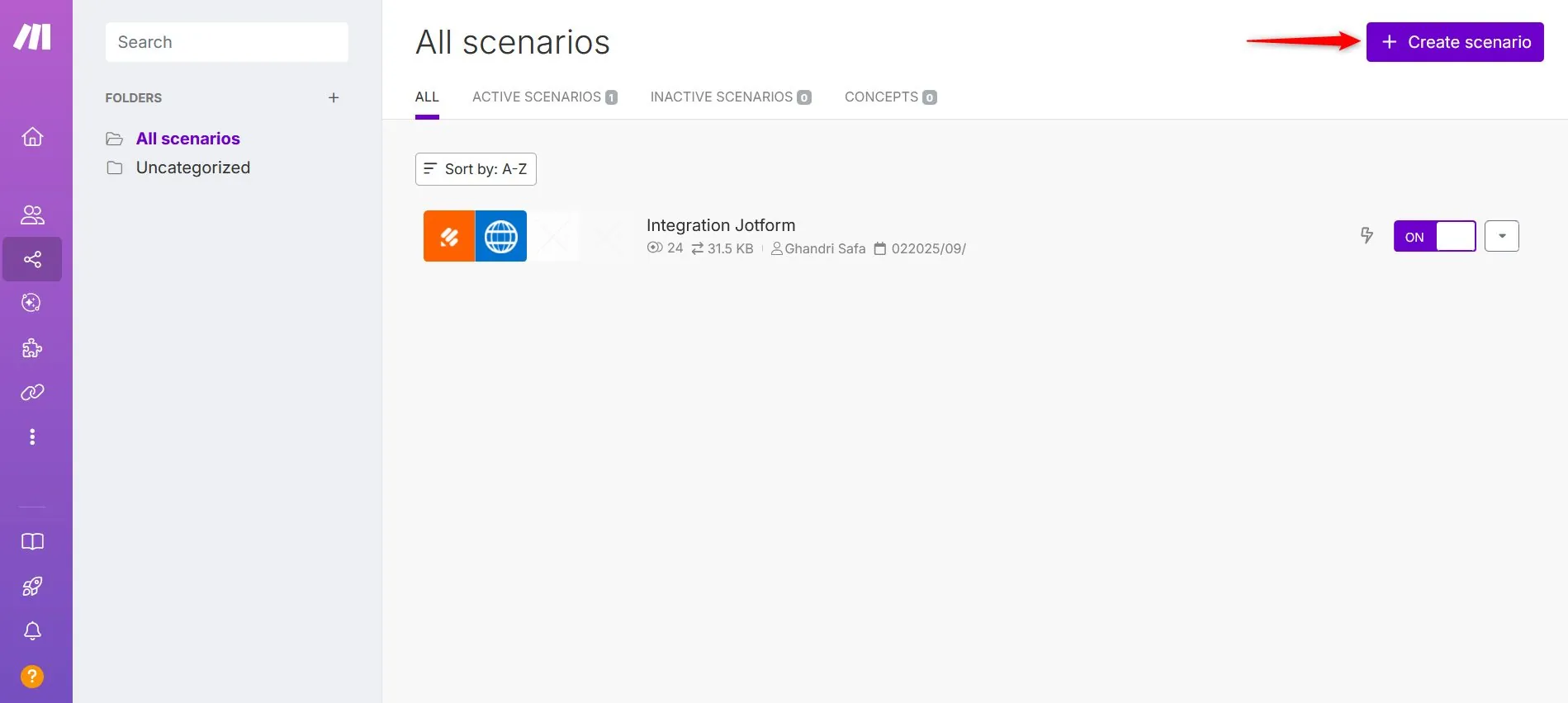
b. Create a New Scenario: In Make, scenarios define the automation workflows.
- Open Scenarios → Create a New Scenario
Configure Typeform Module#
Add your first module: Typeform → Watch Responses
- Click the + sign in the center and search for Typeform.
- Select Watch Responses.
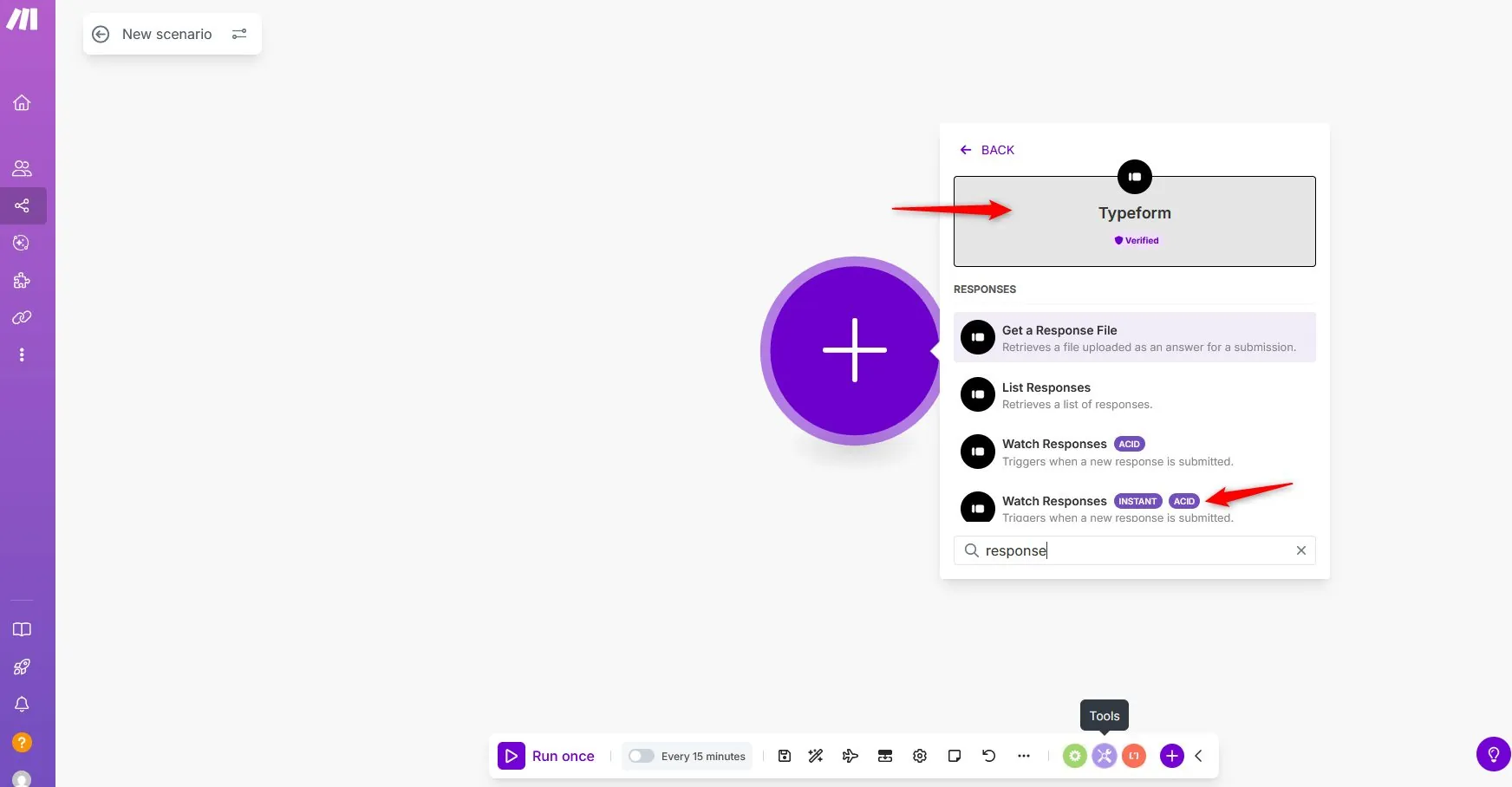
For more information on the types of automations available for Typeform, take a look at this article.
- Click the Create Webhook button.
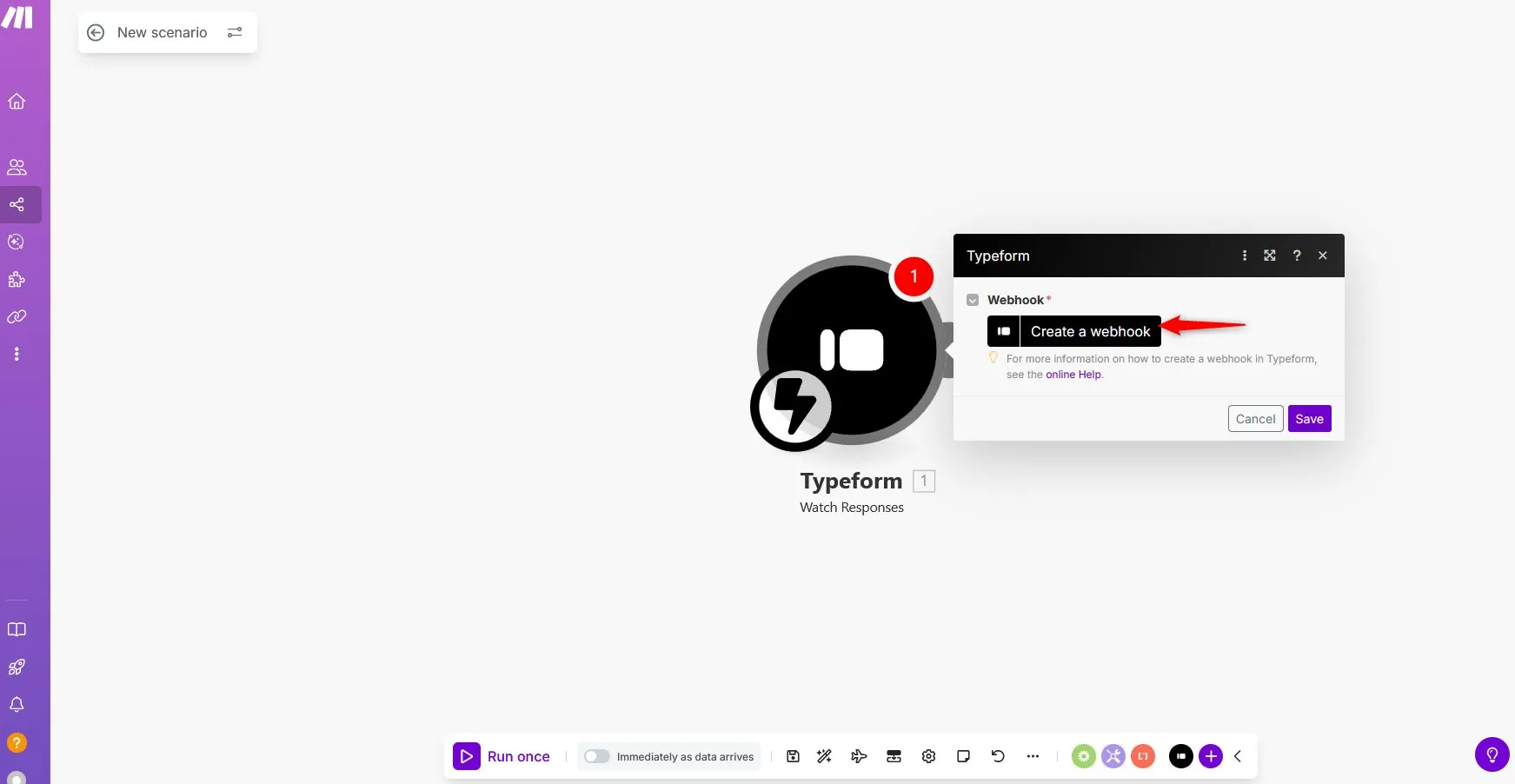
- Click Create a connection
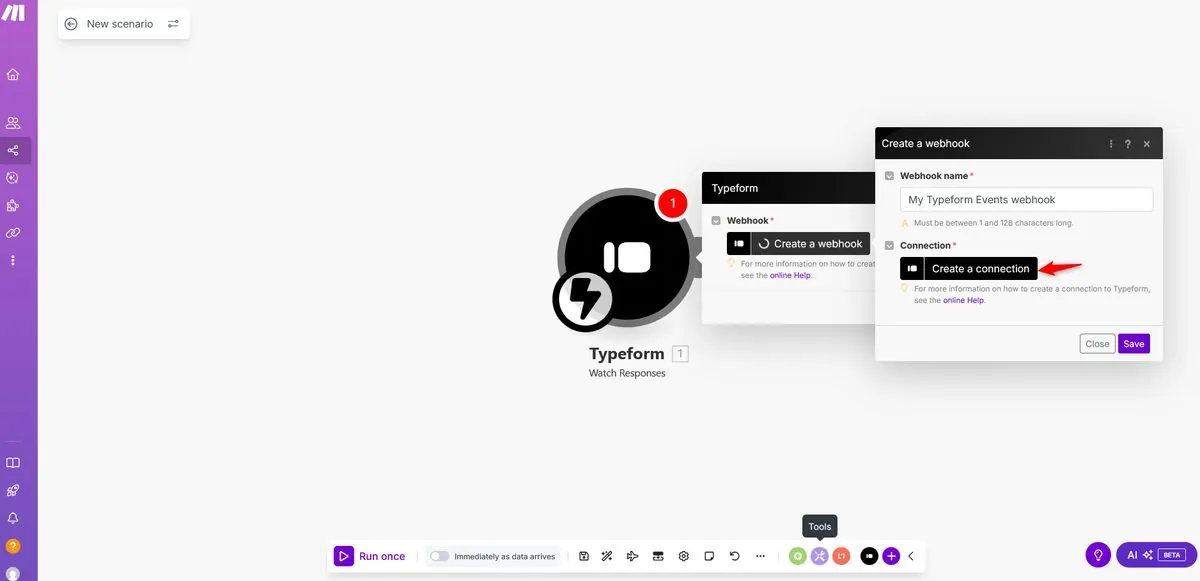
- Click Save.
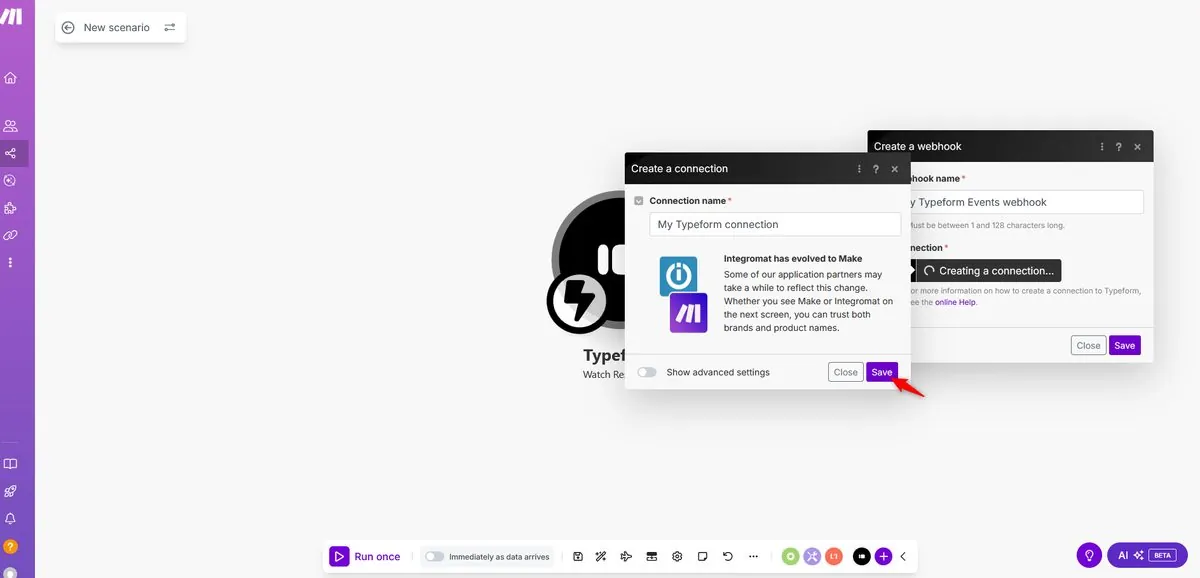
- A pop-up will appear prompting you to grant Make access to your Typeform account → Click Accept.

- In the Form ID dropdown, select the form you want to connect with and click Save.
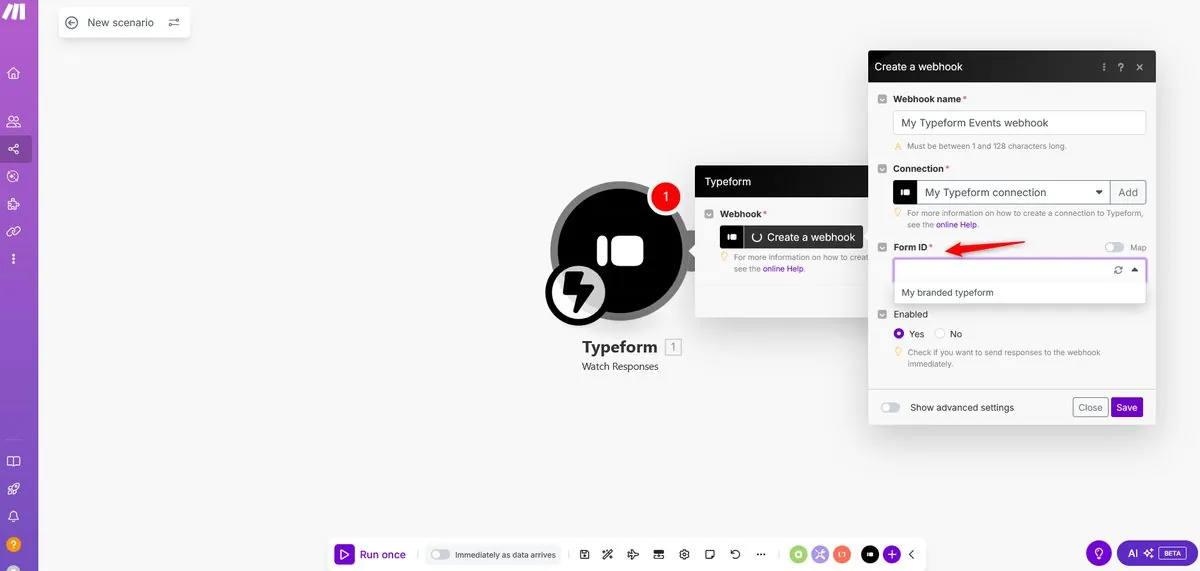
- Click Save again. Your Typeform is now connected with Make.
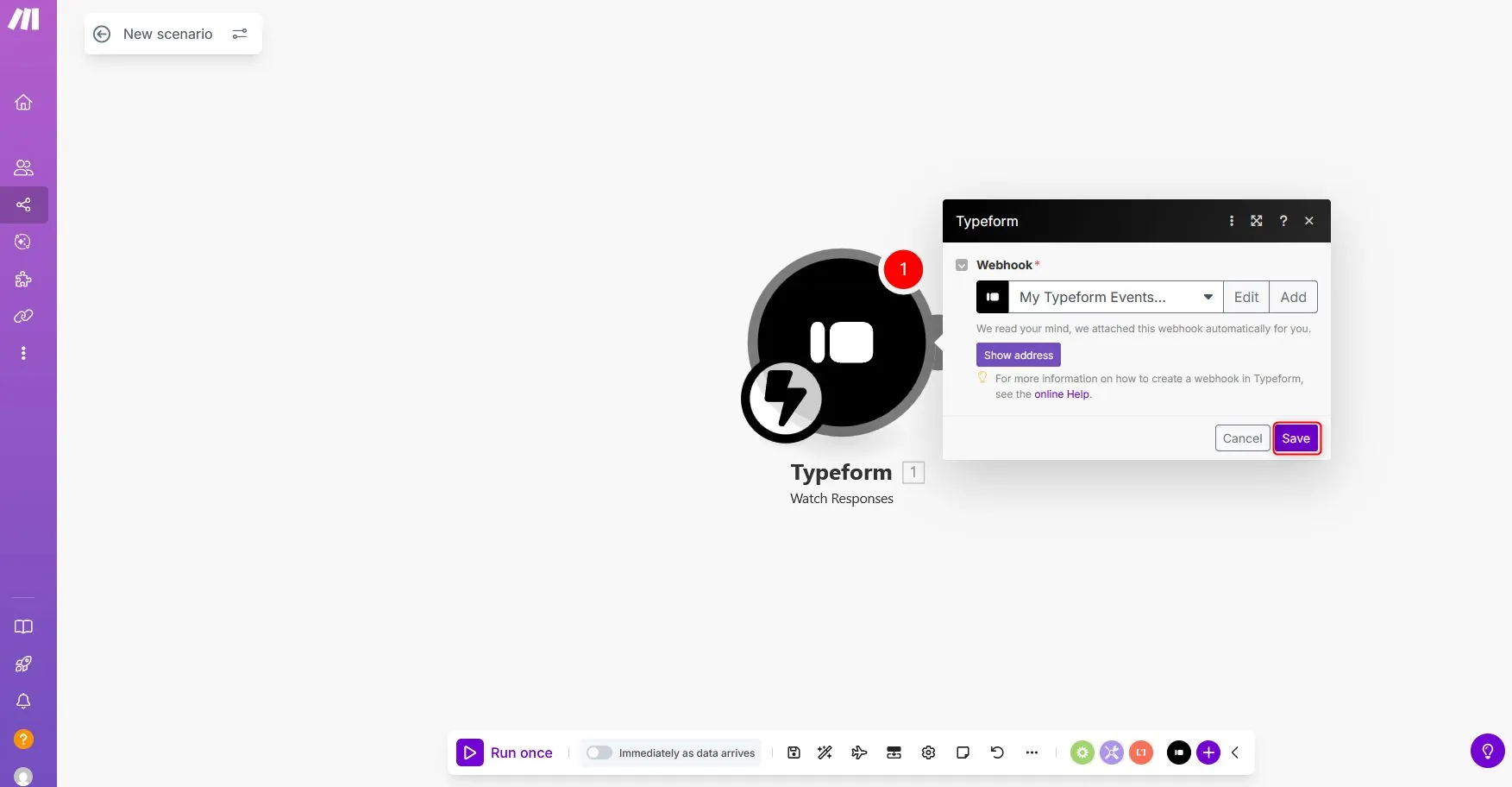
Make will automatically generate a webhook for Typeform.
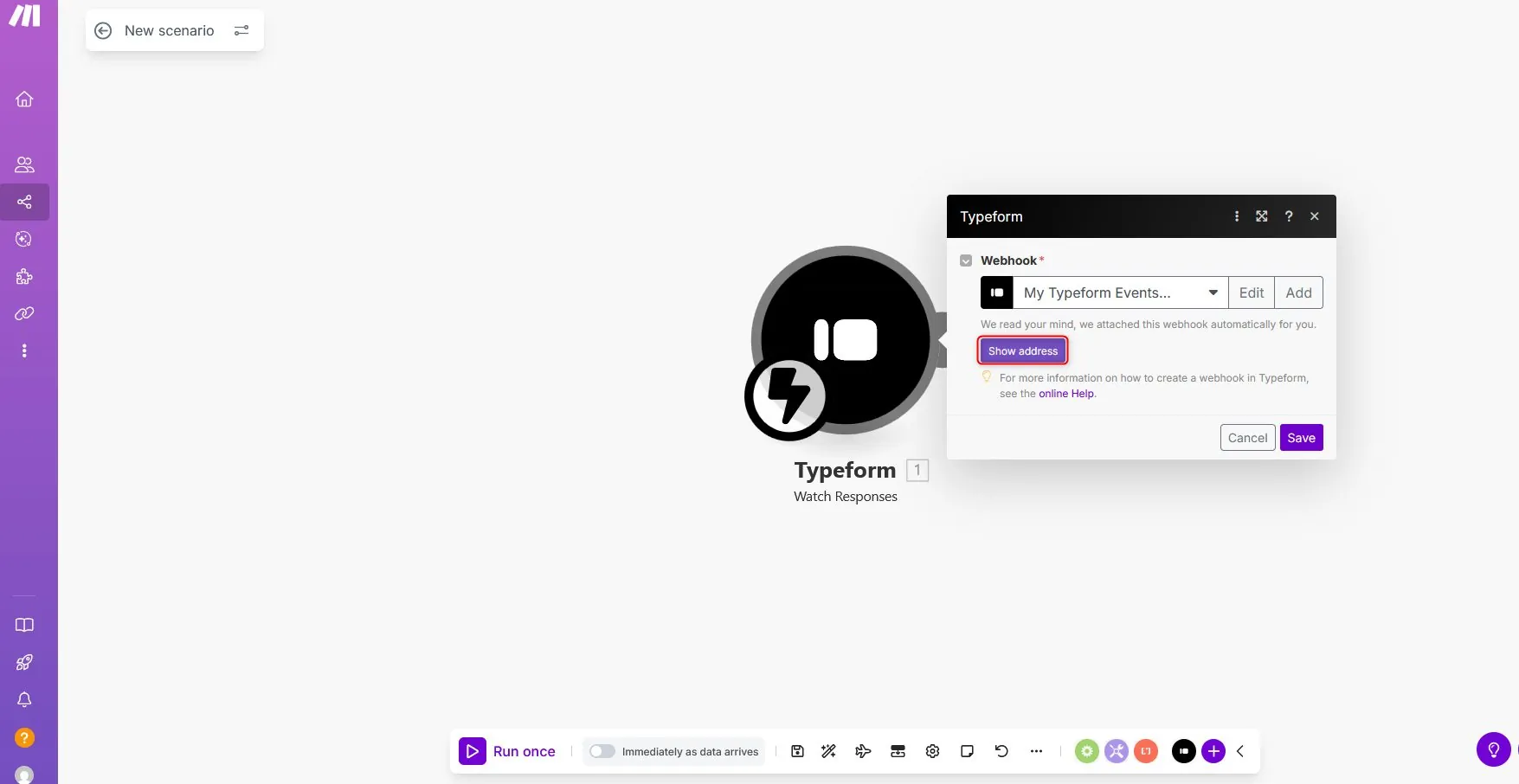
Now you’ll need to connect Make with Creatio.
Connect Make with Creatio#
After Typeform is connected:
- Click on the + icon to add another module.
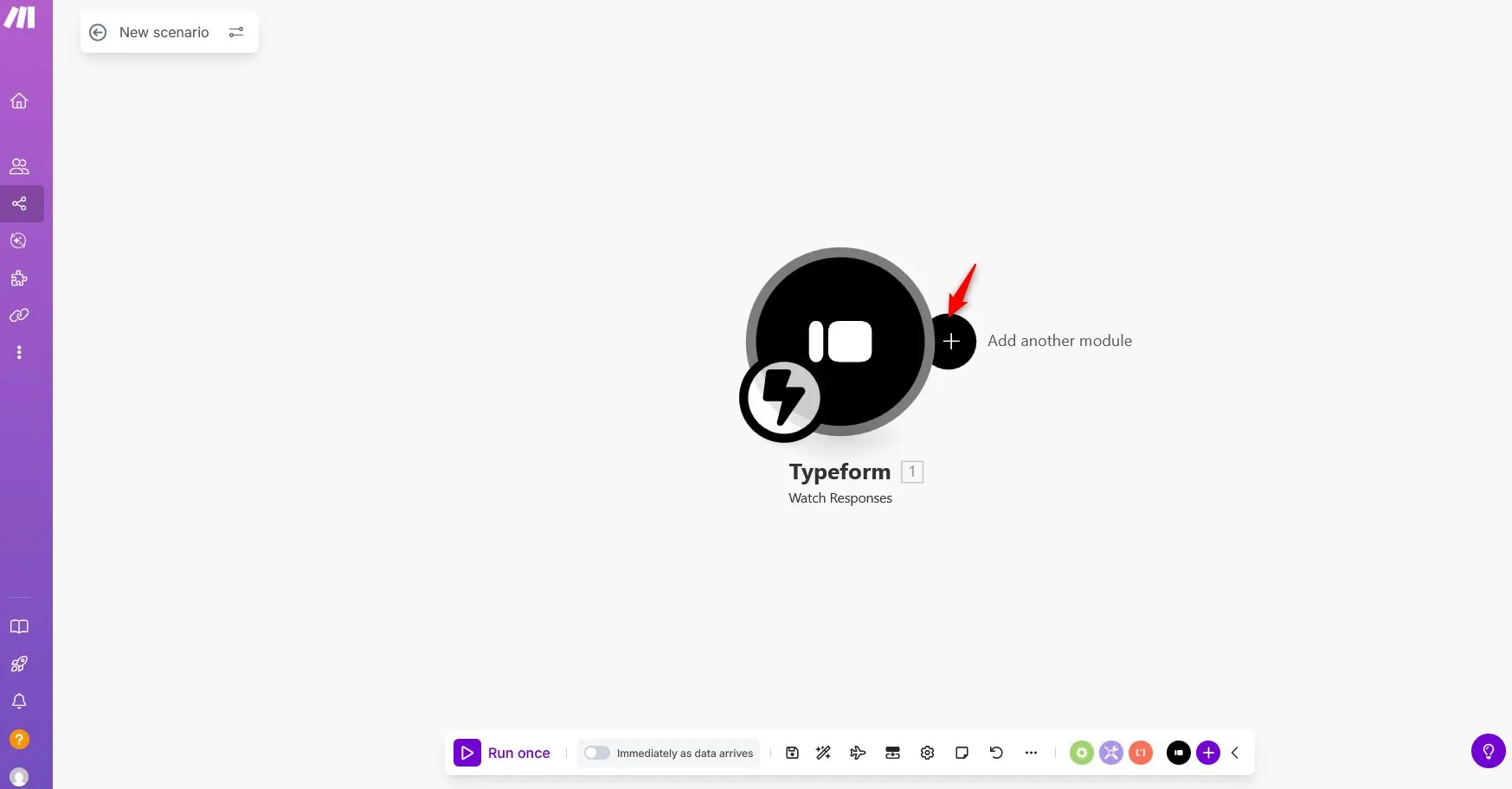
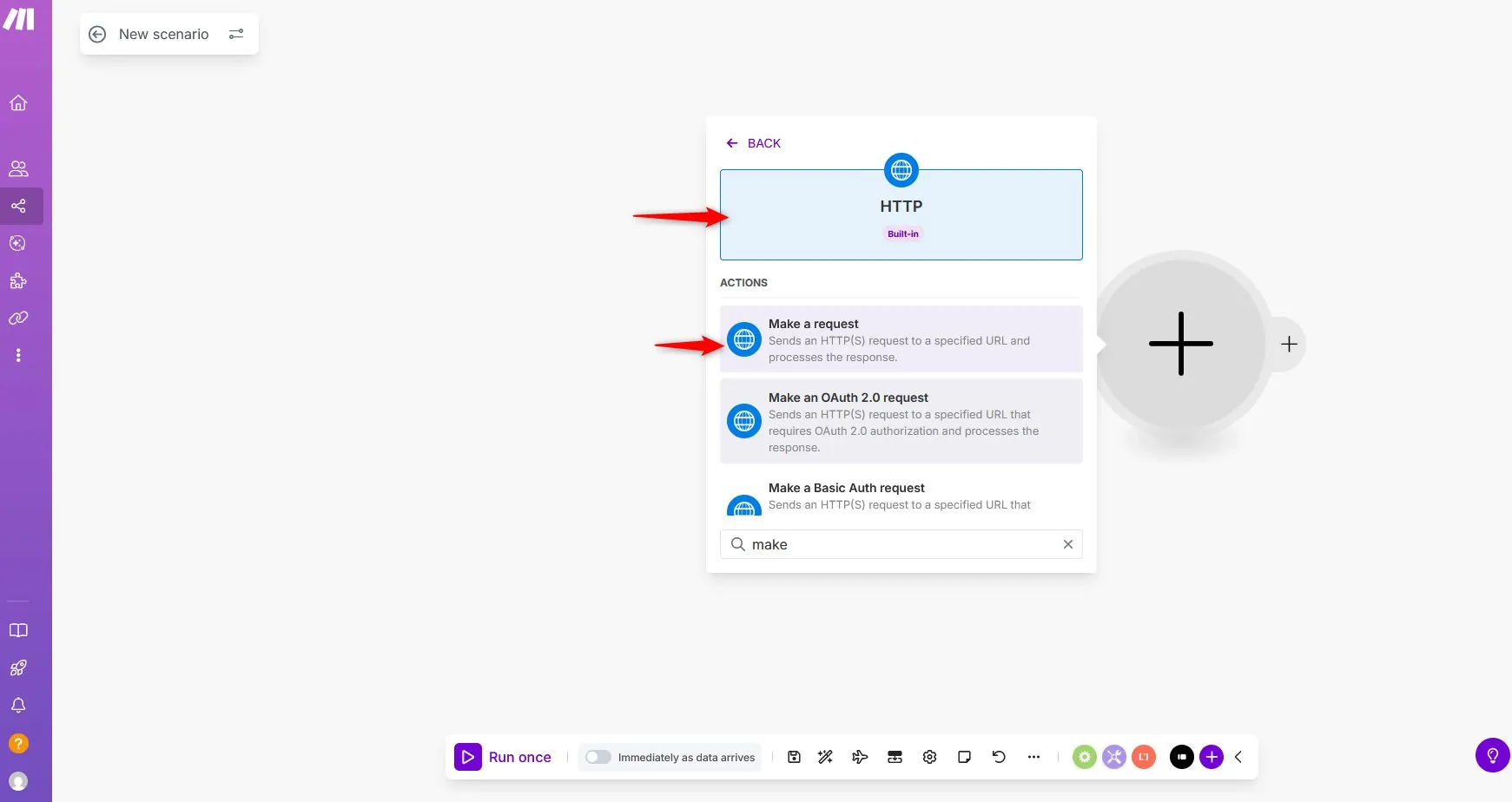
- Select HTTP → Make a Request.
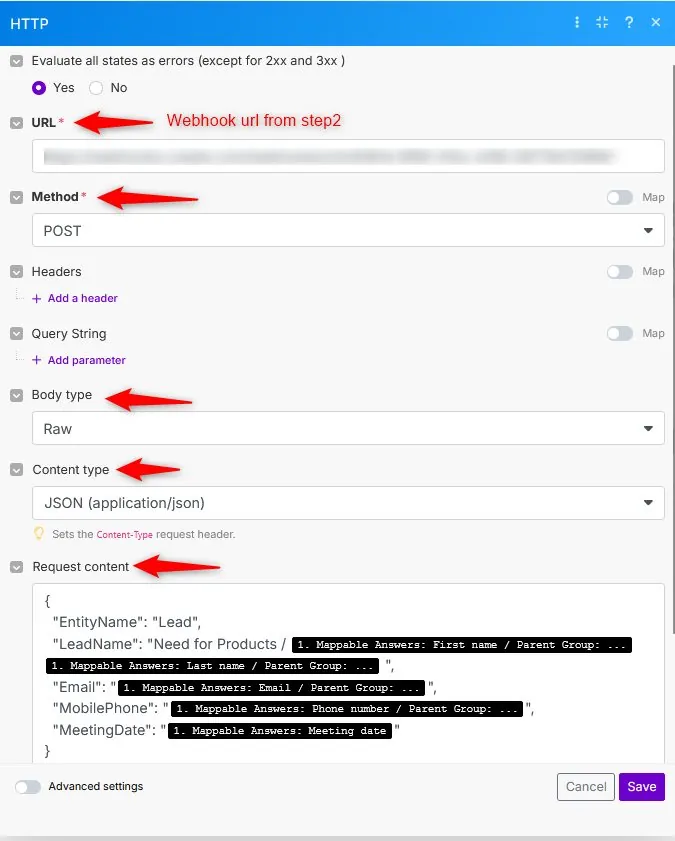
Configure the request:
- URL: Creatio webhook URL
- Method: POST
- Body type: Raw
- Content type: JSON
Request Content Example:
{
  "EntityName": "Lead",
  "LeadName": "Need for Products / {{1.mappable_answers.`62246acf-d2aa-4305-9a95-449dfcd9459c`}} {{1.mappable_answers.`8c3189a7-9427-4a74-9143-0b9a9e682ff2`}} ",
  "Email": "{{1.mappable_answers.`89355fbf-7a9f-4ccd-ab0a-7837390e918f`}}",
  "MobilePhone": "{{1.mappable_answers.`5a8ca0d6-6577-477a-866f-31b92e4c666e`}}",
  "MeetingDate": "{{1.mappable_answers.`af4f0ab4-0304-4e32-bad8-63d3867ed70e`}}"
}
Field Descriptions#
Out of the box, Creatio attempts to parse the webhook of an identified structure to add a record. The webhook must contain the following parameters:
- EntityName: specifies the code of a Creatio object to add a record. Example:
"Lead" - Object column codes: must match Creatio fields. Example:
LeadName→ Full nameEmail→ EmailMobilePhone→ PhoneMeetingDate→ Meeting date
Finally, click the Save button to save.
4. Testing the Scenario#
Now that both Typeform and Creatio are connected, it’s time to test your scenario:
- Click the Run Once button in your Make scenario flow.
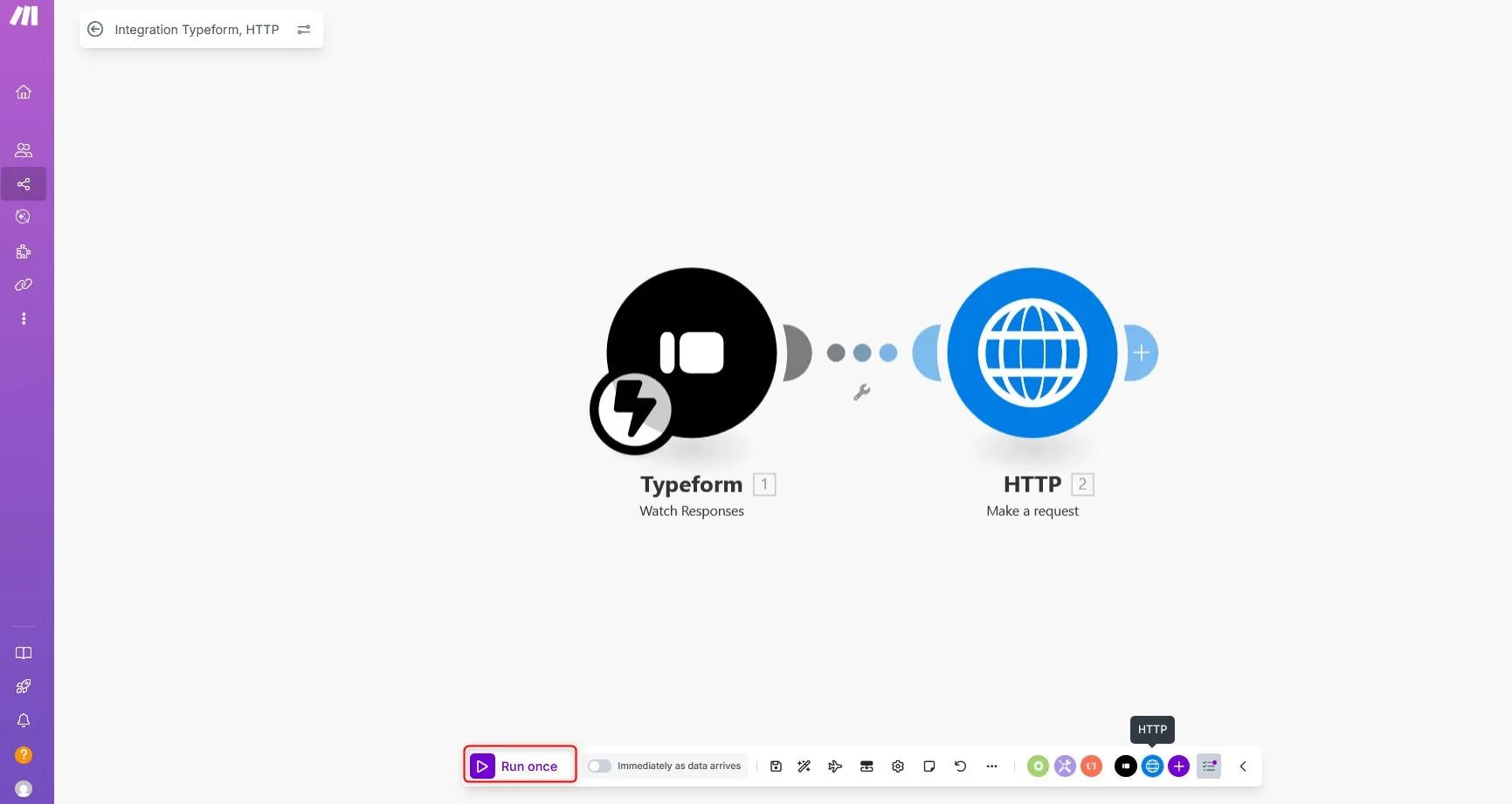
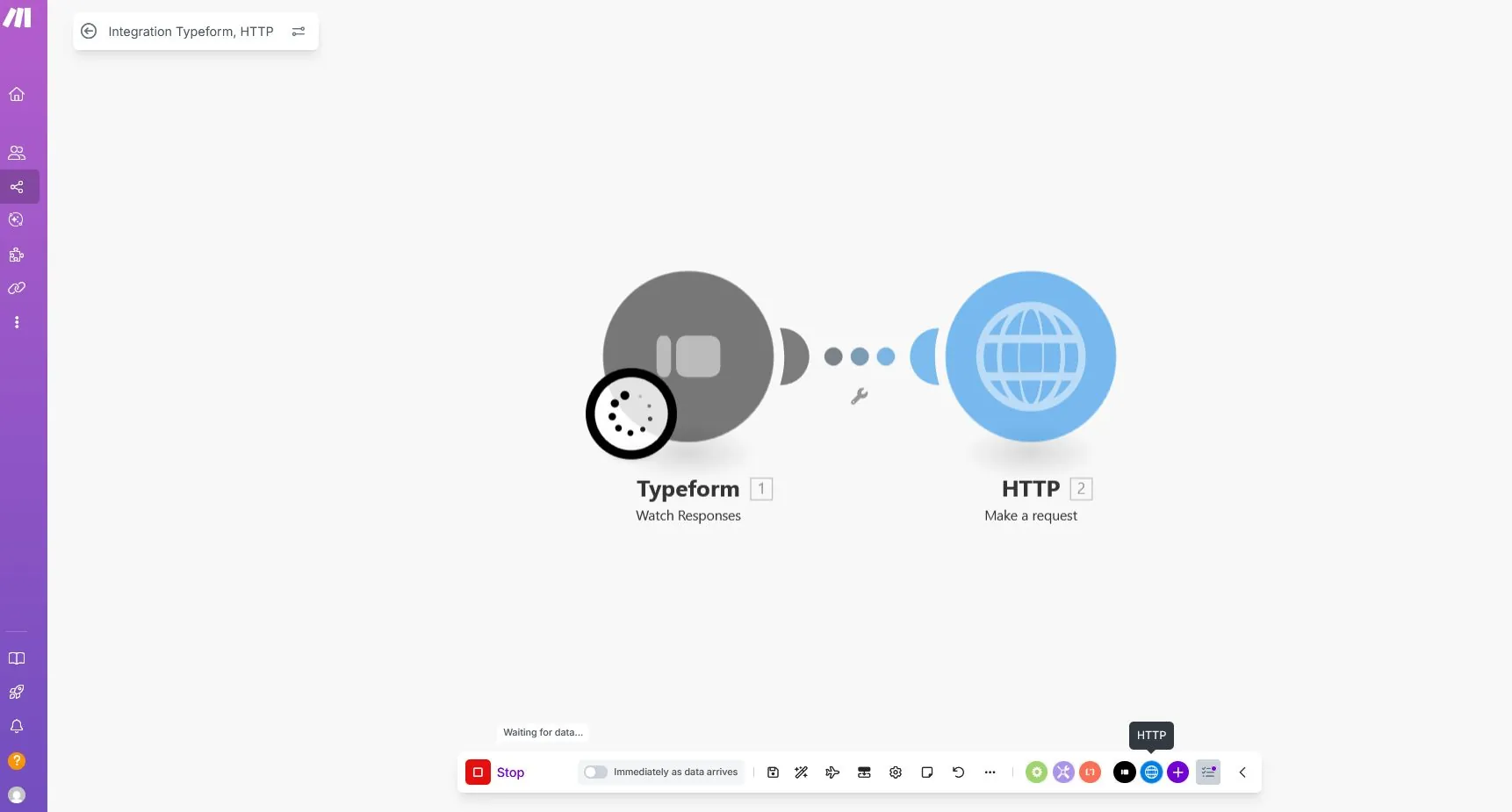
- Submit a test entry in your Typeform.
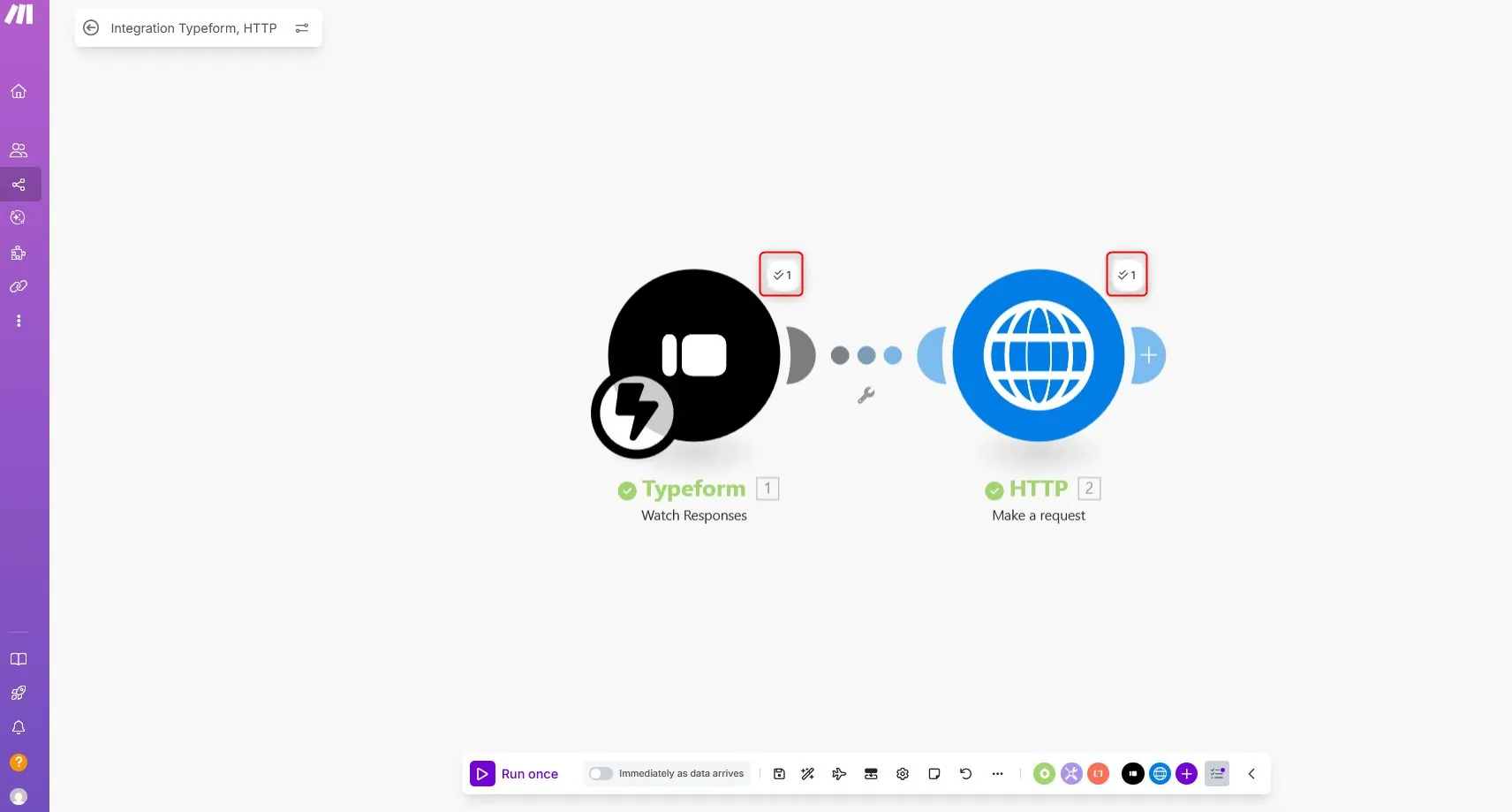
- When the test runs successfully:
- The scenario will stop.
- You will see a checkmark on both Typeform and Creatio modules.
- You’re now ready to activate your scenario.
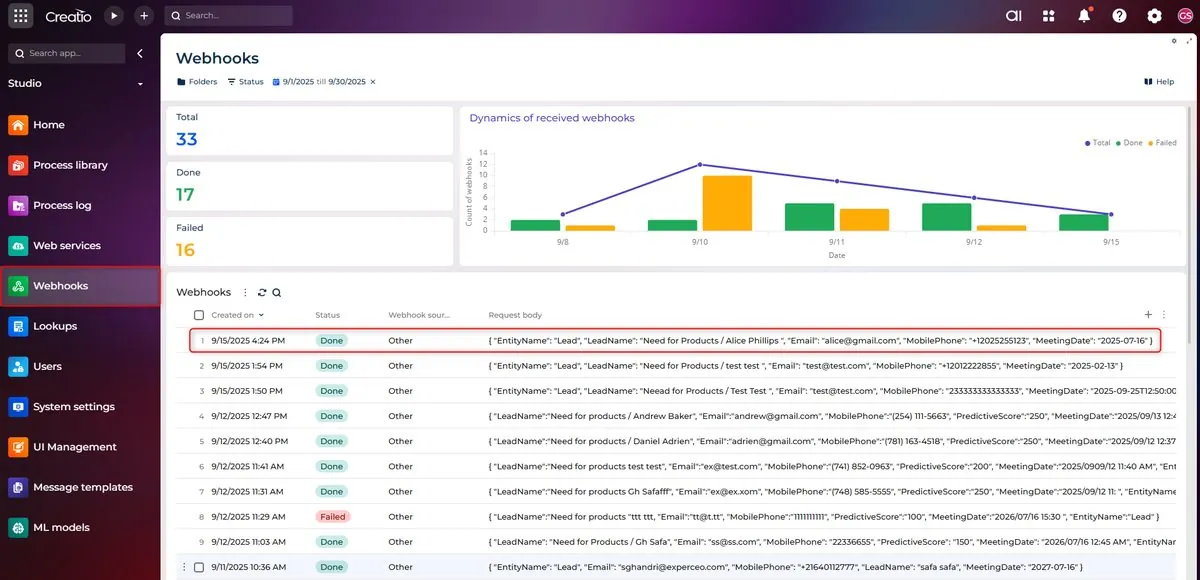
Verify Results in Creatio
Check if the request is successfully received in Creatio.
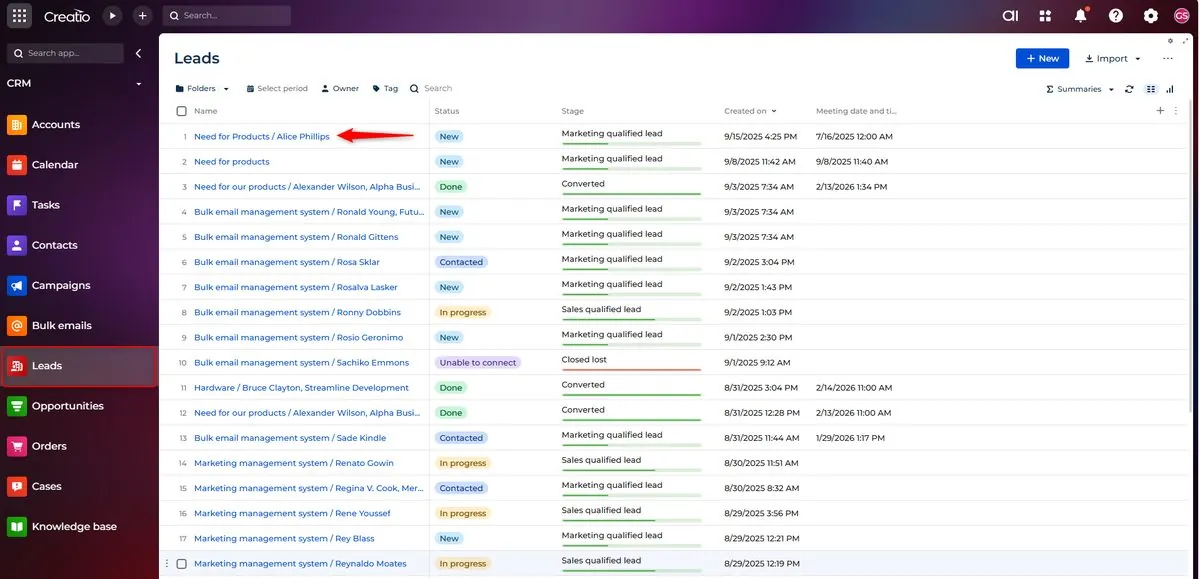
If successful, you’ll see a new Lead record created automatically in Creatio CRM.
5. Activate the Scenario#
- Go back to your scenario diagram in Make.
- Toggle the On/Off switch to On.
From now on, every new Typeform response will be sent automatically to Creatio.
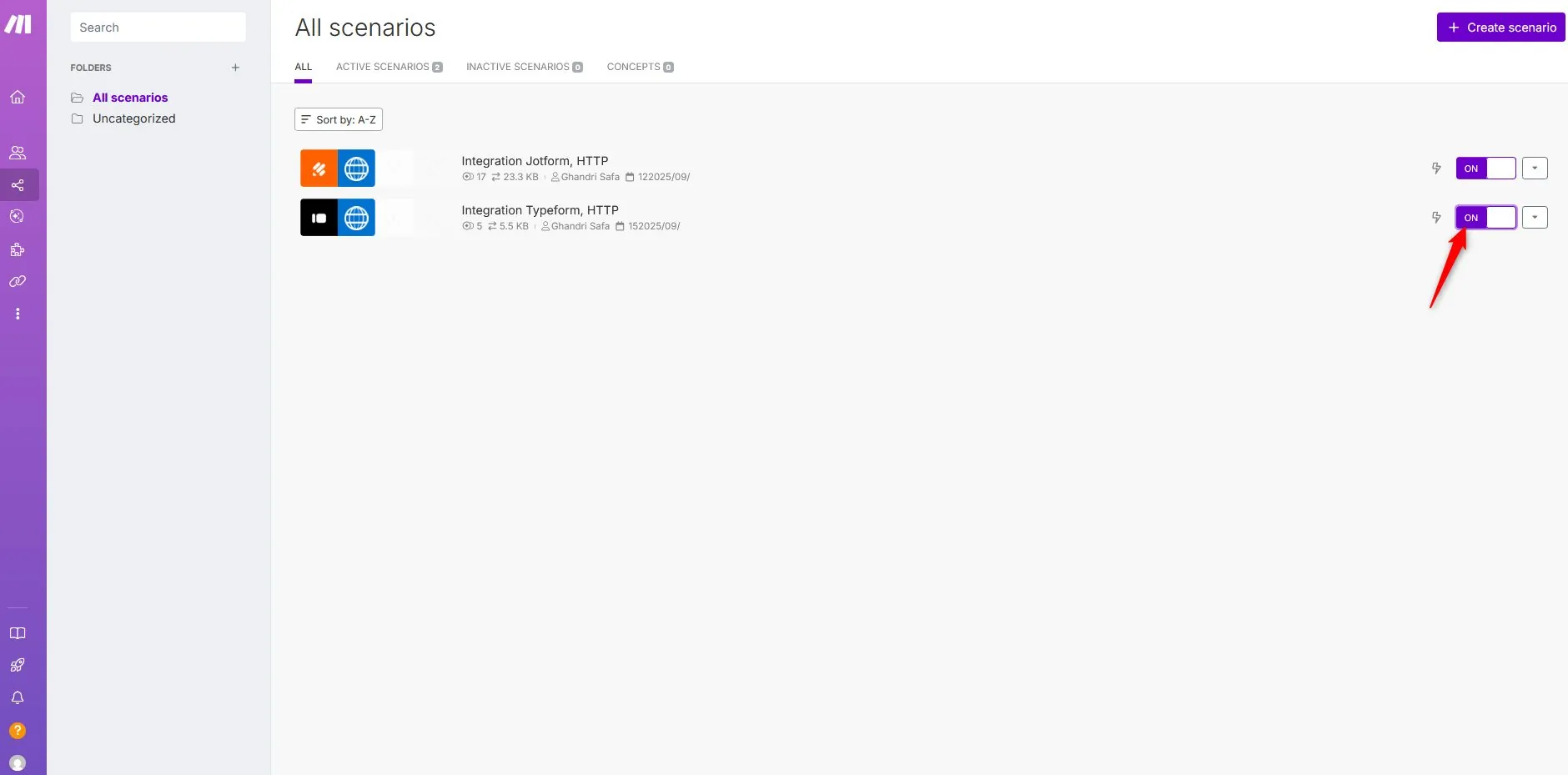
After activation, every new response instantly creates a record (Lead, Contact, Case, etc., depending on your mapping) in Creatio CRM.
Conclusion#
Integrating Typeform with Creatio via Make delivers significant advantages:
- Automates the transfer of form data into Creatio
- Reduces manual entry and human error
- Keeps your CRM updated in real time
- Enhances lead response speed and overall customer experience
With this setup, every Typeform submission is automatically converted into actionable records in Creatio CRM.
Next Steps#
To enhance your integration further, consider:
- Adding data validation rules in Make
- Setting up error handling for failed submissions
- Creating custom fields in Creatio for additional form data
- Implementing lead scoring based on form responses
- Setting up automated follow-up processes in Creatio
FAQ: Typeform → Creatio Integration#
Can I update existing Leads instead of always creating new ones?#
Yes. In Make, insert an HTTP module (or Creatio connector if available) before creation to search by Email. Branch: if found → update endpoint; else → create.
How do I handle multi-select answers from Typeform?#
Use an Iterator on the array of selections, map each to a Creatio lookup ID, aggregate, then include in the final JSON payload.
Why are date fields not saving correctly?#
Ensure ISO 8601 format (e.g. 2025-09-22T10:00:00Z). If Typeform outputs localized strings, add a Formatter module in Make to convert.
Is a dedicated API user required in Creatio?#
Not for the autogenerated webhook endpoint; but using authenticated REST for update/search operations is best practice (create an API integration user with restricted permissions).
Can I push attachments from Typeform to Creatio?#
Yes. Capture the file URL from Typeform, add an HTTP module to download, then POST to Creatio file endpoint referencing the created record ID.
How do I prevent spam submissions?#
Add a honeypot field in Typeform or use Make to discard records missing essential fields or containing disposable email domains.
Need a custom Creatio integration?
Thirty minutes with Mohamed, who founded the company and still runs these calls himself. He will sketch your situation and tell you the cleanest path, including the times when that path is not us.